
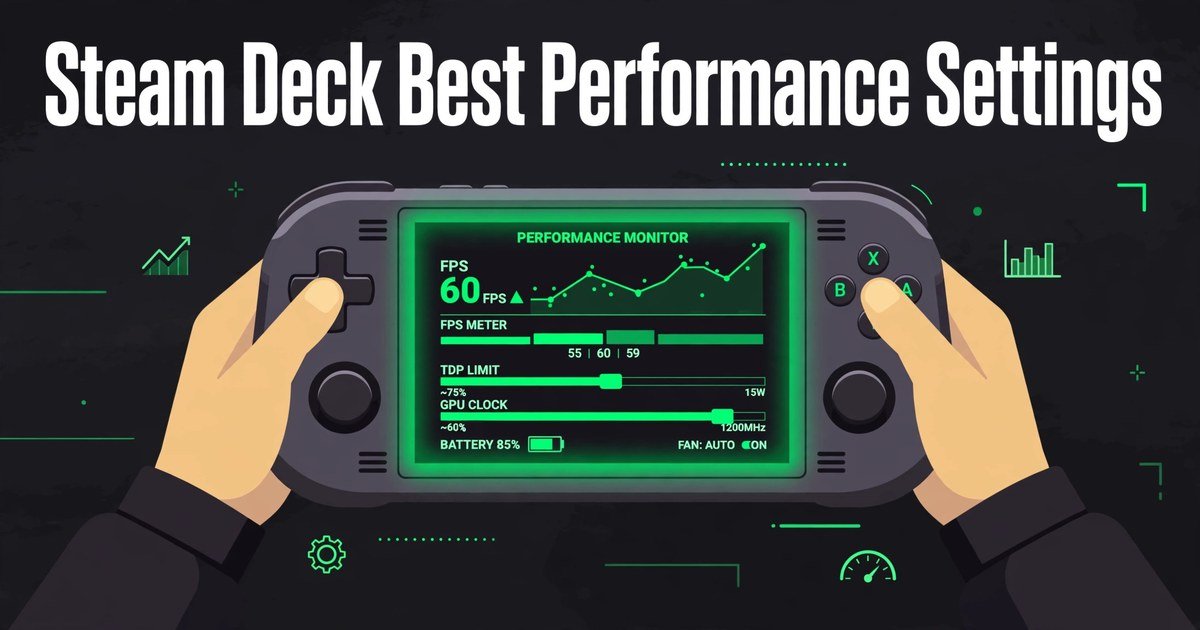
Steam Deck Best Performance Settings
The Steam Deck is a capable handheld, but it is not a desktop PC. The steam deck best performance settings are not one preset you can copy for every game. They are a few controls you adjust per game: a frame-rate target, a matching refresh rate, a power limit, and sensible in-game graphics options. Get those right and the steam deck best performance settings deliver smoother play and longer battery life.
This guide explains the steam deck best performance settings, using the controls Valve built into SteamOS. You will learn to pick a frame-rate target, set a power limit, and use upscaling well. The steam deck best performance settings below work on LCD and OLED models. For more handheld guides, visit the GameCresta homepage.
Table of Contents
Start With a Frame-Rate Target
Match Refresh Rate to FPS Cap
Set a TDP Limit
Use FSR and Render Scale
In-Game Graphics Settings
Save Settings With Per-Game Profiles
Battery Life vs Performance
LCD vs OLED
FAQs
Start With a Frame-Rate Target: The Core of Steam Deck Best Performance Settings
SUMMARY: Pick a frame-rate target before touching anything else, and choose one your game can actually hold.
Before you change a graphics option, choose the frame rate you want the game to hold. That decision shapes the rest of the steam deck best performance settings, because the cap, the refresh rate, and the power limit all serve the target you pick. In the steam deck best performance settings, a locked frame rate feels better than a higher one that jumps up and down.
For demanding 3D games, start at 30 FPS. For games with some headroom, try 40 FPS, the widely recommended balance point on this handheld. For light and 2D games, 60 FPS is realistic. Valve recommends that every game use a frame-rate limit, either the game’s own limiter or the SteamOS limiter. To set the cap, press the Quick Access button, the three-dot button on the right of the Deck, and open the Performance tab, marked with a battery icon. The limiter offers 15, 30, and 60 FPS, plus Off, and 40 FPS appears once you set a matching refresh rate.
Match the Refresh Rate to Your FPS Cap
SUMMARY: The refresh rate should match your frame-rate cap, so each frame gets an even slice of time on screen.
The refresh rate is how many times per second the Deck’s screen draws a new image, and it should match your frame-rate cap. When the two agree, motion looks smooth. When they disagree, the game can feel stuttery even while the frame-rate counter looks fine. This pairing is one of the most overlooked steam deck best performance settings, and it costs nothing to get right.
The LCD refresh-rate slider runs from 40 to 60 Hz, while the OLED display goes up to 90 Hz. The popular pairings in the steam deck best performance settings are 30 FPS with 60 Hz, 40 FPS with 40 Hz, and 45 FPS with 90 Hz on OLED. At 40 Hz, a new frame arrives every 25 milliseconds, against 33.3 at 30 FPS. Change the refresh rate in the same Performance tab: the steam deck best performance settings always set both values together.
Set a TDP Limit That Fits the Game
SUMMARY: The TDP limit caps how much power the Deck’s chip can draw, which controls heat, fan noise, and battery drain.
TDP stands for Thermal Design Power: the power budget for the Deck’s custom AMD APU. Valve lists the APU power range as 4 to 15 W, and by default SteamOS applies no TDP limit. Setting a TDP limit caps that power draw, which is why the steam deck best performance settings control heat, fan noise, and battery drain. It is the most effective control in the steam deck best performance settings for stretching play time.
Lower it gradually. In the Performance tab, enable the TDP Limit slider and start near the top, such as 12 W for a demanding game. Step down by 1 W at a time in a busy scene. When the frame rate dips below your target, step back up by 1 W: that is the floor for that game. Use the starting points below.
| Game type | TDP starting point | FPS target |
|---|---|---|
| Demanding 3D games | 12 to 15 W | 30 to 40 FPS |
| Middle-weight 3D games | 8 to 11 W | 40 FPS |
| Light 3D games | 6 to 8 W | 60 FPS |
| 2D games | 4 to 6 W | 60 FPS |
Use FSR and Render Scale the Right Way
SUMMARY: FSR upscales a lower-resolution image back toward native resolution, so the graphics chip does less work.
FSR stands for FidelityFX Super Resolution, AMD’s upscaling method. It renders the game at a lower resolution, then upscales the image toward the native 1280 x 800. On the Deck, FSR is a Scaling Filter in the Performance tab, and the steam deck best performance settings list Linear, Nearest, and Integer scaling alongside it. It only works below 1280 x 800, for example 960 x 600, so set the in-game resolution first, then switch the scaling filter to FSR.
FSR is useful, but it is not free performance: the upscaling step takes processing work, and in some games that cancels out the savings. That is why the steam deck best performance settings treat FSR as something to test. Turn it on and check the overlay’s power draw before and after; keep it only if wattage drops while the frame rate holds. Where a game offers its own upscaler, such as in-game FSR 2 or Intel XeSS, use that first, since it usually looks cleaner. Some games also offer a render scale option. For a deeper reference, see the Steam Deck HQ performance settings encyclopedia.
In-Game Graphics Settings That Matter Most
SUMMARY: The in-game graphics menu decides how hard the hardware works, so lower the expensive effects first.
The SteamOS controls set the frame rate and power budget, but the in-game graphics menu decides how hard the hardware has to work to hit them. Start with the game’s own preset, or the low preset, and raise options only while the frame rate stays locked. The steam deck best performance settings always start from the lowest sensible baseline and add quality back.
In the steam deck best performance settings, lower the expensive effects first. Shadows, volumetric lighting and fog, reflections, and crowd density are usually the heaviest options in a demanding scene, so reduce those one at a time and check the overlay after each change. Keep anti-aliasing modest. Keep the resolution at native 1280 x 800 unless you are using FSR, and do not use two frame-rate limiters at conflicting values. The steam deck best performance settings for in-game graphics are the ones that hold your frame rate in the busiest scene, so always test where the game is most demanding.
Save Your Settings With Per-Game Profiles: Steam Deck Best Performance Settings for Every Title
SUMMARY: Per-game profiles save your settings for each title, so a light game never inherits a demanding game’s power limit.
No single setup fits every game, which is why the steam deck best performance settings use per-game profiles. At the top of the Performance tab sits a toggle labelled Use per-game profile. Turn it on while a game is running and the frame-rate cap, refresh rate, TDP limit, GPU clock, scaling filter, and half-rate shading choices you make are saved for that game alone. This turns one-time tuning into a setup that lasts.
Switch on Use per-game profile before you change anything. Then set the frame-rate target, refresh rate, TDP limit, and scaling filter in order. The profile saves automatically, so the steam deck best performance settings for that game return next time you launch it. Half-rate shading, another toggle in the same panel, shades parts of the image at a lower rate to save power; leave it off unless a game needs extra headroom. If a game refuses to start, our guide to a Steam Deck game that will not launch covers the fixes.
Battery Life vs Performance: Finding Your Balance
SUMMARY: Every performance choice is also a battery choice, so the best setup is the lowest-power one that holds your frame rate.
Higher frame rates, refresh rates, and TDP limits all draw more power. Valve’s official battery estimate is 2 to 8 hours. The steam deck best performance settings are therefore a balance: the best setup is the lowest-power configuration that still holds the frame rate you want.
Brightness is the easiest saving outside the Performance tab. Dropping the screen brightness to around 40 to 50 percent indoors makes a real difference, since the display is one of the biggest power draws. The OLED model has a natural advantage: Valve says it has 30 to 50 percent more battery life than the LCD model, thanks to a bigger 50 Wh battery, a more efficient APU, and a display that draws less power, and Valve lists the OLED battery at 3 to 12 hours of gameplay. Check the overlay’s discharge rate in watts while playing: the steam deck best performance settings for travel use a 30 FPS cap, a matched refresh rate, and a modest TDP limit.
LCD vs OLED: What Actually Changes in Steam Deck Best Performance Settings
SUMMARY: The two models share the same menus and tuning method, and the differences come down to the display and the battery.
The two models share the same controls, the same menus, and the same approach to tuning, but a few hardware differences change which settings are available. Both screens run at 1280 x 800 and use the same Quick Access performance menu. The steam deck best performance settings for the LCD and OLED models are therefore mostly identical, with the differences coming down to the display and the battery.
The display is the biggest difference. The LCD refresh-rate slider runs from 40 to 60 Hz, while the OLED display goes up to 90 Hz, which unlocks extra pairings such as 45 FPS at 90 Hz. 40 FPS at 40 Hz is available on both models. The battery is the other difference: the OLED model’s larger battery and more efficient chip give it longer play time at the same settings. The steam deck best performance settings here state both models’ limits wherever they matter, so the same advice works whichever Deck you own.
FAQs About Steam Deck Best Performance Settings
SUMMARY: This section answers the most common questions about the steam deck best performance settings.
What is the best FPS cap for the Steam Deck?
There is no single best cap. Use 30 FPS for demanding games, 40 FPS for games with headroom above 30, and 60 FPS for light games. The steam deck best performance settings always start from a target the game can sustain. Test in the busiest scene.
Should I use 40 FPS or 60 FPS on the Steam Deck?
Use 40 FPS when a game cannot hold a steady 60, and 60 FPS when it can. 40 FPS at 40 Hz is the popular middle ground. The steam deck best performance settings always match the refresh rate to the cap you choose.
What TDP limit should I set on the Steam Deck?
Start near the top for demanding games, around 12 W, and step down by 1 W until the frame rate dips, then step back up by 1 W. In the steam deck best performance settings, light games run well at 6 to 8 W, and 2D games at 4 to 6 W.
Should I turn on FSR on the Steam Deck?
Turn it on only when it helps. Set the game below 1280 x 800 first, switch the scaling filter to FSR, and set sharpness to 4 or 5. If the game offers its own FSR 2 or XeSS upscaler, use that instead.
Do performance settings differ between Steam Deck LCD and OLED?
The menus and tuning method are the same, but the limits differ. The LCD screen runs up to 60 Hz, while OLED goes up to 90 Hz, so OLED owners can use 45 FPS at 90 Hz.
Will lowering settings damage my Steam Deck?
No. Caps, refresh-rate changes, TDP limits, and scaling filters only limit how hard the hardware works; they cannot damage it. If your Deck will not start at all, our Steam Deck won’t turn on fix guide walks through the charging, restart, and recovery steps.
For More Updates Visits: GAME CRESTA







2 Responses