
Mic Not Working in Game Fix
Your headset works in a voice call and the Windows microphone test shows sound, yet your teammates hear silence. A mic not working in game fix usually comes down to one broken link in a short chain: Windows, the game launcher, the game itself, or another app holding the microphone.
This guide works through that chain in order, from the fastest checks to the deeper driver fixes. A mic not working in game fix is rarely a broken headset. In most cases the fault is a mute switch, a wrong default device, a privacy toggle, a forgotten push-to-talk key, or a second app that grabbed the microphone first. When the Windows input meter moves but the game still hears nothing, the fault is inside the game or its launcher. That order is what makes a mic not working in game fix work.
Table of Contents
– Why Your Mic Works Elsewhere but Not in the Game
– Quick Checks for a Mic Not Working in Game Fix
– Check Windows Sound Settings and the Input Meter
– Turn On Windows Microphone Privacy Access
– Fix the In-Game Voice Chat Settings
– Check Steam Voice Settings
– Stop Discord and Other Apps From Holding Your Mic
– Update Drivers, Exclusive Mode and Game Bar Settings
– FAQs About a Mic Not Working in Game Fix
Why Your Mic Works Elsewhere but Not in the Game
SUMMARY: This section explains why a microphone can work in one app and stay silent in a game.
Windows has a default input device, but Discord, Steam and most games each keep their own input choice as well. If Discord is set to your headset and the game is set to your webcam microphone, your voice reaches Discord and never reaches the game, which is the most common cause behind a mic not working in game fix. That split is the first clue in any mic not working in game fix.
Desktop apps need permission to use the microphone, and Windows controls it with three switches: a master switch, a Store-apps switch, and a desktop-apps switch. Games are desktop apps, so the desktop-apps switch is the one that matters most in a mic not working in game fix, and if an update turned it off, Discord can still hear you while the game cannot. A mic not working in game fix means finding which of these splits applies to you.
Quick Checks for a Mic Not Working in Game Fix
SUMMARY: This section covers the fast physical checks to run first, including mute switches, boom position, cables and ports, before you change any software setting.
Many headsets have a mute switch on the cable or an earcup, and some mute the microphone when you flip the boom arm up. Flip the switch a few times and lower the boom fully. This is the simplest mic not working in game fix, and that switch is the first mic not working in game fix check for a reason.
Next, check the connection. Unplug the headset and plug it back in firmly, using a rear USB port for a USB headset. For a 3.5 mm headset, check whether your PC has separate headphone and microphone jacks, because a single plug in a headphone-only jack gives game sound but no microphone, and the fix is a splitter cable. For a wireless headset, confirm it is charged and paired. Restart the game after any replug, because games read the device list at launch. That restart is a small but real mic not working in game fix step.
Check Windows Sound Settings and the Input Meter
SUMMARY: This section shows how to pick the correct input device in Windows Sound settings and use the built-in test to prove Windows can hear you.
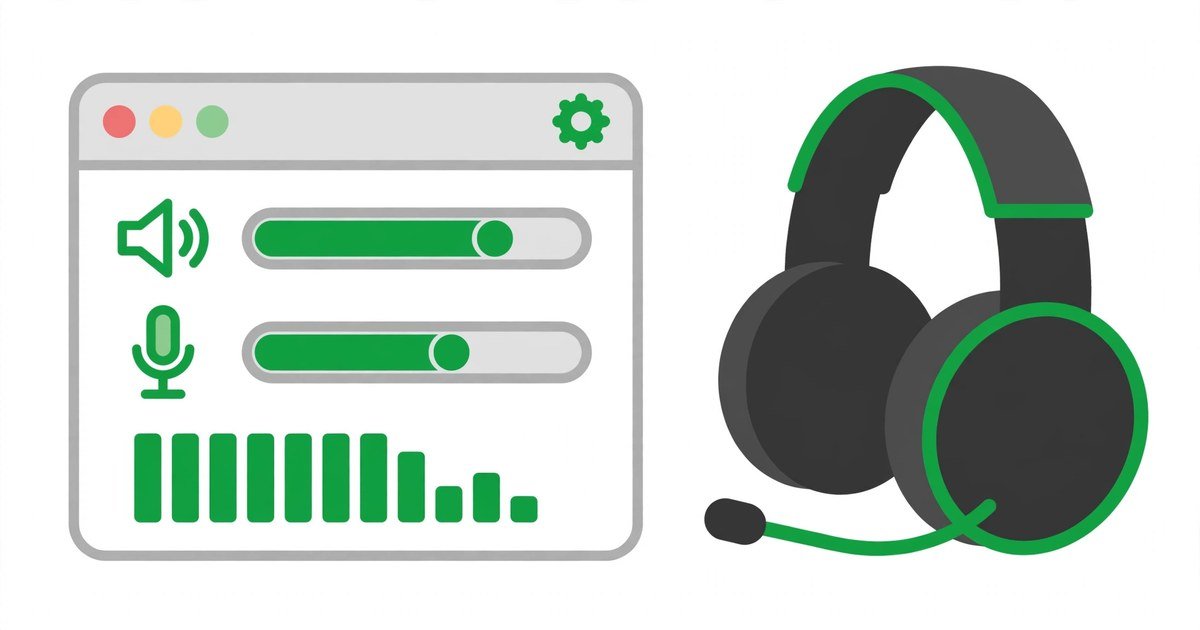
Open Settings, System, then Sound. Under Input, open the list labelled Choose a device for speaking or recording and select your headset microphone by name. Windows can set a webcam as the default after an update, so pick the headset yourself. This is the first real step of any mic not working in game fix, because every app below Windows inherits this choice.
Speak normally and watch the input meter. If the meter moves, this mic not working in game fix moves to the game itself, because Windows hears you. If the meter stays flat, raise the Input volume slider and use the Start test button to check it. If it is missing, open More sound settings, Recording tab, and turn on Show Disabled Devices. If it still does not appear, test the headset on another device.
Turn On Windows Microphone Privacy Access
SUMMARY: This section explains the three microphone privacy switches in Windows 11 and why the desktop-apps switch is the one that most often blocks games.
Open Settings, go to Privacy and security, then Microphone, where three switches decide whether apps can hear you. First, turn on Microphone access, the master switch for the whole PC, and second, turn on Let apps access your microphone, which covers Microsoft Store apps. Third, turn on Let desktop apps access your microphone, because games are desktop apps. Those three switches decide most mic not working in game fix cases.
The sound test checks the device itself, while the privacy page checks whether apps may receive its signal, and a major Windows update can turn these switches off. The symptom is exactly a mic not working in game fix case: the microphone works in the Windows test, or in one app, but not in the game. After turning the switches on, restart the game so it picks up the new permission, then test again. That restart matters, because a mic not working in game fix can linger until the game reloads its permissions.
Fix the In-Game Voice Chat Settings
SUMMARY: This section walks through the voice chat settings inside the game itself, including the input device, voice chat toggle, push-to-talk key and voice chat volume.
First, confirm voice chat is turned on in the mode you actually play, because some games ship with it disabled by default. Skipping it is the most common mic not working in game fix mistake.
Second, set the input device inside the game by name. Do not leave it on Default or System Default, because that hands the choice back to Windows, and Windows may be pointing at a different device than the one you selected in the last section. Pick the headset microphone explicitly, then check the voice chat and microphone volume sliders. Third, check the voice mode and its key: many games offer open microphone and push-to-talk, where the microphone only transmits while you hold a key, and if the game is set to push-to-talk and you are not holding the key, you will be silent no matter how good the microphone is. Our guide to Rainbow Six Siege Crashing PC Fix covers another common PC problem with that game.
Check Steam Voice Settings
SUMMARY: This section covers the microphone test and device choice in Steam, which sits between Windows and the game for many PC players.
Open Steam, then open Friends and Chat from the lower-right corner of the client, click the gear icon, and open the Voice tab. Under Input Device, select your headset microphone by name instead of leaving it on Default, because Steam follows the system default otherwise. For many players, this is where a mic not working in game fix finally lands.
On the same Voice page, click Start Microphone Test and speak normally. That test is the fastest mic not working in game fix check Steam offers: if it hears you, the fault is inside the game itself, while if it hears nothing, the fault is in the device choice, the Windows privacy switches, or the connection. Also check the Voice Transmission Type: if it is Push to Talk, hold the key shown beside the push-to-talk hotkey setting while speaking. The Steam and game push-to-talk keys are separate, so holding the game key will not open the Steam microphone. The Steam support page for microphone issues covers the official steps.
Stop Discord and Other Apps From Holding Your Mic
SUMMARY: This section explains how Discord and other apps can hold the microphone, and how to set each one to the same device.
Open Discord, click the gear icon next to your username to open User Settings, then go to Voice and Video. Under Input Device, select your headset microphone by name and do not leave it on Default. Under Mic Test, click Let’s Check and speak, and if the bar moves, Discord hears you. Getting Discord and the game to agree on one device is a core part of any mic not working in game fix.
With Push to Talk on, Discord stays silent unless you hold the key, and the same trap applies inside games. If you use Voice Activity, look at Input Sensitivity: if the threshold sits above your speaking voice, turn off automatic sensitivity and lower the slider. Discord’s own Voice, Video and Streaming Guide covers these controls in detail. Close the browser, recording tools and headset software, launch only the game, and test again. One app at a time is how a mic not working in game fix finds the culprit.
Update Drivers, Exclusive Mode and Game Bar Settings
SUMMARY: This section covers audio driver updates, exclusive mode, and the Xbox Game Bar microphone controls.
In Device Manager, under Audio inputs and outputs, right-click your headset and choose Update driver. Microsoft’s guide to updating audio drivers in Windows covers the Windows Update, Device Manager and reinstall routes. A driver reinstall is a valid mic not working in game fix when nothing else works.
Next, check exclusive mode. Open the classic Sound window, go to the Recording tab, right-click your microphone, choose Properties, and open the Advanced tab. Uncheck Allow applications to take exclusive control of this device, and uncheck Give exclusive mode applications priority if shown. After unchecking it, click Apply, restart the game, and test again. In Xbox Game Bar (Windows key and G), open Settings, Audio, and confirm the right microphone is selected and unmuted. Our 8BitDo Controller Not Working on PC fix and Steam Deck Game Won’t Launch Fix use the same layered approach.
FAQs About a Mic Not Working in Game Fix
SUMMARY: This section answers the most common questions about a microphone that works outside the game but stays silent inside it.
Why does my mic work in Discord but not in my game?
Discord and your game keep separate input settings. Pick your headset by name in the game, in Discord under Voice and Video, and in Windows under System, Sound, Input. That is the usual mic not working in game fix answer.
Why does my mic work in the Windows test but not in the game?
The Windows test checks the device, while the game also needs permission, the right input, voice chat on, and the right voice mode. Turn on Microphone access and Let desktop apps access your microphone, then check the in-game input device, voice chat toggle and volume. Work down that list and the mic not working in game fix usually resolves.
How do I test my microphone in Steam?
In Steam, open Friends and Chat, click the gear icon, and open the Voice tab. Select your headset, then click Start Microphone Test and speak. If it hears you, Steam is fine and the fault is in the game. That result points the mic not working in game fix at the right layer.
Should I use push-to-talk or open mic in games?
Push-to-talk is safer, because it only transmits while you hold the key. Open microphone is more convenient in a quiet room, but it needs the sensitivity set carefully. Either mode works once the mic not working in game fix is complete.
Can a Windows update break my game microphone?
Yes. Updates can reset the default input to a webcam, turn off microphone access, or install a new driver. After an update, confirm the headset is still the input device and all three privacy switches are on. Rechecking after updates keeps a mic not working in game fix from coming back.
When should I replace my headset?
Replace the headset only after it fails the same test on another device, such as a phone or a second PC. If it works elsewhere, the problem is software on your PC. If it fails everywhere, check the cable, boom and detachable parts first. Our PS5 Multiplayer Games guide and Best Video Games in 2026 roundup list games where team chat matters.
For More Updates Visits: GAME CRESTA







One Response