
Nintendo Switch microSD Card Not Recognised Fix: 4 Fixes That Work
You slide a microSD card into your Switch, and nothing happens: no new storage, no games to download, or a message saying the card cannot be accessed — frustrating when the card worked in another device. In most cases, a nintendo switch microsd card not recognised fix is not a repair job at all — just a power-off, a reseat, an update, or a format, in the right order.
This guide follows Nintendo’s own order for the original Switch family: standard Switch, Switch OLED, and Switch Lite. Work through this nintendo switch microsd card not recognised fix in order, testing the card after each one. Stop as soon as the card is recognised, instead of formatting a card that only needed reseating. Bookmark this page — we will update it if Nintendo changes its guidance.
Table of Contents
Power Off First
Reseat the Card
Check Compatibility
Update the System
Format the Card
Test the Card and the Slot
What the Error Codes Mean
Quick-Fix Checklist
When Nothing Works
FAQs
Power Off First: The Nintendo Switch microSD Card Not Recognised Fix Starts Here
SUMMARY: Power the console off completely first, because Nintendo says a card should never be removed or inserted while the console is on or in sleep mode.
A nintendo switch microsd card not recognised fix starts with a full power-off, not sleep mode. Hold the power button, choose Power Options, then Power Off, and wait until the screen is dark. Only then remove or insert a card.
Nintendo warns that swapping a card while the console is on, or in sleep mode, prompts a restart and can leave the card unreadable. If you already swapped the card while the console was on, power it off fully now and power it back on with the card in place. For many owners, that clean restart is the whole nintendo switch microsd card not recognised fix.
Reseat the Card: The Nintendo Switch microSD Card Not Recognised Fix in One Click
SUMMARY: A card that is not fully seated will not be read — remove it, check the contacts, and push it back in until it clicks.
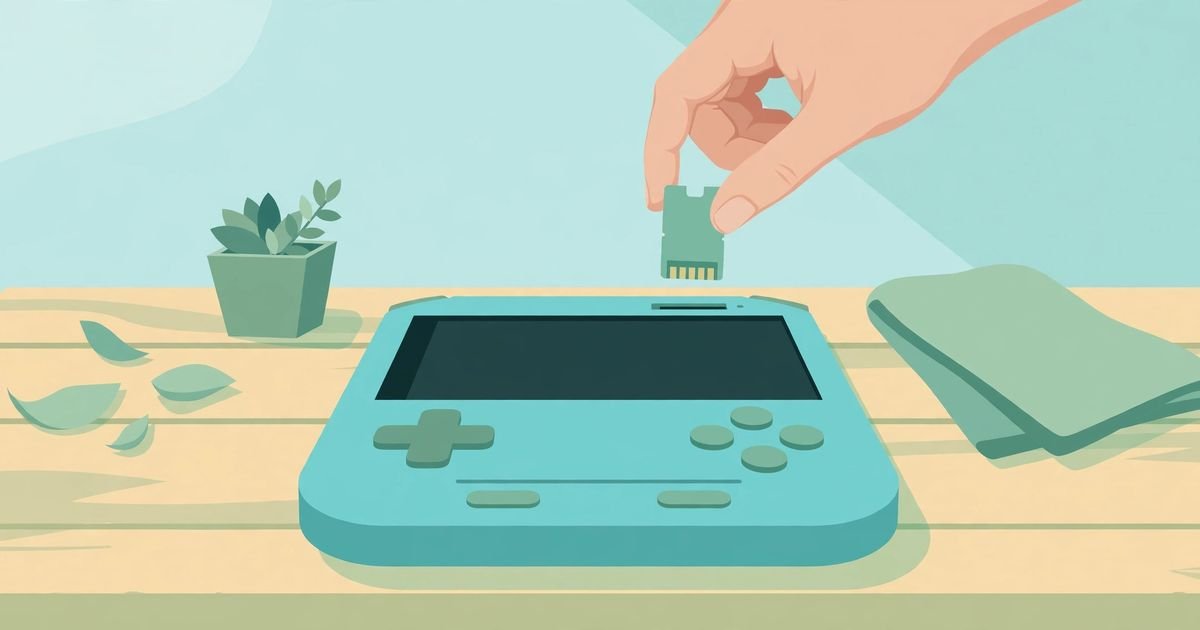
The slot is under the kickstand on the standard Switch and OLED model, and under a small cover on the Lite. Push down on the card until you hear a click, then slide it out. If the gold contacts look dirty, wipe them gently with a clean, dry cloth — never water, never scrape them.
Check the slot for dust, debris, or bent pins. Do not poke anything into the slot, and do not force the card. If the slot looks damaged, stop here and read the repair section below. Then push the card back in gently until you hear the click. A card a fraction short of the click will not be read. Power on and check — if the card is recognised, this nintendo switch microsd card not recognised fix is done.
Check Compatibility: The Wrong Card Type in This Nintendo Switch microSD Card Not Recognised Fix
SUMMARY: The original Switch only accepts microSD, microSDHC, and microSDXC cards, so check the label on your card first.
Not every memory card works in a Switch: a full-size SD card will not fit, and a miniSD card will not work either, even with an adapter. Nintendo’s support page lists the types the original Switch family supports:
| Card type | Capacity | Works? |
|---|---|---|
| microSD | Up to 2 GB | Yes |
| microSDHC | 4 GB to 32 GB | Yes |
| microSDXC | 64 GB to 2 TB | Yes, after update |
| Full-size SD | Any | No |
| miniSD | Any | No |
Read the label: if it says microSDXC, it is a 64 GB to 2 TB card, and it needs a system update before the console can use it — that is the next section. If the card is a type the Switch does not support, no nintendo switch microsd card not recognised fix will make it work. Also check the card is genuine: buy from a known retailer. Nintendo suggests UHS-I cards with transfer speeds of 60 to 95 MB/s.
Update the System: The Nintendo Switch microSD Card Not Recognised Fix for SDXC Cards
SUMMARY: SDXC cards from 64 GB to 2 TB need a system update before the console can read them.
If your card is microSDXC, this step is not optional: Nintendo says the console needs a system update before it can use an SDXC card for the first time. Put the card back in, power on, connect to the internet, then open System Settings and choose System Update.
Nintendo released system version 22.5.0 on June 15, 2026, the version listed as current for the original Switch family — check your console is on it or newer. An update can enable a compatible SDXC card, but it cannot repair physical damage, dirty contacts, a counterfeit card, or a broken slot. Never skip this step for an SDXC card — it is the official nintendo switch microsd card not recognised fix for the most common first-time problem.
Format the Card: The Last Resort in This Nintendo Switch microSD Card Not Recognised Fix
SUMMARY: If the card is compatible and updated but still not read, formatting can fix a corrupt file system — but it erases everything on the card.
Format only after the earlier steps in this nintendo switch microsd card not recognised fix have failed. Formatting permanently erases the card, and the data cannot be recovered. Back up screenshots and videos first, if the card can still be read anywhere. Downloadable software can be downloaded again with the same Nintendo Account, and save data lives in system memory.
In the console, open System Settings, go to System, and choose Formatting Options, then Format microSD Card. The console will warn you that all data will be deleted — confirm only if you have backed up what you need. One catch: if the Switch cannot detect the card at all, the format option may be unavailable or fail. A card the console cannot see at all is more likely dead, fake, or incompatible than corrupt. If the format succeeds, the file system was the problem, and this nintendo switch microsd card not recognised fix has worked.
Test the Card and the Slot: The Nintendo Switch microSD Card Not Recognised Fix That Finds the Fault
SUMMARY: Try the card in another device and a different card in the Switch — those two tests tell you whether the card or the console is at fault.
Now find out which part is broken: the card or the console. Two simple tests answer that.
First, try the card in another device, such as a phone or PC with a card reader. If that device cannot read it either, the card is almost certainly dead or fake. If it reads fine, the card is probably good, and the problem is the console or slot. Second, try a different known-good card. Power off first, insert it, and power on. If the Switch reads it, your first card is the problem. If not, the slot or the console is the problem.
What the Error Codes Mean in a Nintendo Switch microSD Card Not Recognised Fix
SUMMARY: Nintendo documents two error codes for microSD problems, and both point back to the same steps.
Some owners see an error code instead of a silent failure. Nintendo documents error codes 2016-0390 and 2016-0247 for microSD issues on the Switch, and both point to the same steps in this nintendo switch microsd card not recognised fix.
Error 2016-0390 appears when the console cannot access the microSD card; error 2016-0247 appears when a download to the card fails. For both, Nintendo’s suggested path is the same order used here: power off, check compatibility, run a system update, then format the card or try another card. If the error repeats with several supported cards, or when downloading to system memory, Nintendo says the console needs repair. Do not chase the code itself — there is no secret fix hidden in the number.
Quick-Fix Checklist: The Nintendo Switch microSD Card Not Recognised Fix in One Table
SUMMARY: Work through the fixes in order and test the card after each one.
| Step | What to do | Time |
|---|---|---|
| 1 | Power the console off | 1 minute |
| 2 | Remove the card; check contacts | 2 minutes |
| 3 | Push the card in until it clicks | 1 minute |
| 4 | Check the card type | 1 minute |
| 5 | Run a system update | 5–10 minutes |
| 6 | Format the card (erases it) | 5 minutes |
| 7 | Test the card in a phone or PC | 2 minutes |
| 8 | Try a different known-good card | 2 minutes |
| 9 | No card is read — contact support | Varies |
Work through this nintendo switch microsd card not recognised fix table in order. If the card is recognised at step 3, stop. If it is recognised at step 5, the update was the fix. If you reach step 9, a home fix is no longer the right tool.
When Nothing Works After This Nintendo Switch microSD Card Not Recognised Fix
SUMMARY: If several supported cards fail, or the slot looks damaged, stop repeating the steps and contact Nintendo Support.
Sometimes you do everything right and the card still is not recognised — supported card, updated system, clean contacts, second known-good card fails too. Stop repeating the steps of this nintendo switch microsd card not recognised fix — the cause is now likely inside the console: a damaged slot or a deeper hardware fault.
Nintendo says if several cards cannot be read, the console will need servicing. Read the official steps on Nintendo’s microSD support page.
Before you send it in, note what you tried: card type, system version, and whether a second card failed. Do not open the console yourself — it can void the warranty. For more Switch help, see our Joy-Con drift fix and our Switch won’t turn on fix, and visit the GameCresta homepage.
Nintendo Switch microSD Card Not Recognised Fix: FAQs
SUMMARY: The questions owners ask most after a card is not recognised.
Why is my Nintendo Switch not recognising my microSD card?
Usually a card not fully seated, a microSDXC card needing a system update first, an unsupported card type, or a corrupt file system. Work through this nintendo switch microsd card not recognised fix in order: power off, reseat until it clicks, check the type, update.
Can I insert or remove a microSD card while the Switch is on?
No — in this nintendo switch microsd card not recognised fix, always power the console off first. Swap a card while it is on or in sleep mode and you will be prompted to restart, and the card may not be read until a full restart.
Will formatting my microSD card delete my games and save data?
Formatting in this nintendo switch microsd card not recognised fix erases everything on the card, and that data cannot be recovered. Downloadable games can be downloaded again with the same Nintendo Account, and save data is kept in system memory, not on the card.
What size microSD card can a Nintendo Switch use?
The original Switch supports microSD up to 2 GB, microSDHC from 4 GB to 32 GB, and microSDXC from 64 GB to 2 TB. SDXC cards need a system update before first use — the key step here. Switch 2 is different: microSD Express only, up to 2 TB.
What should I do if my microSD card works in my phone but not in my Switch?
That result points to the console in this nintendo switch microsd card not recognised fix, not the card. Check the card is seated and the contacts are clean, then update with the card inserted. Then try a different known-good card. If that fails too, the slot or console is likely at fault, and Nintendo’s repair service is next.
Should I buy a new microSD card or send my Switch for repair?
Buy a new card only if your tests in this nintendo switch microsd card not recognised fix point to the card: it fails in another device too, or a different card works fine in your Switch. Send the console for repair if several cards fail, or if the slot looks damaged.
For More Updates Visits: GAME CRESTA