
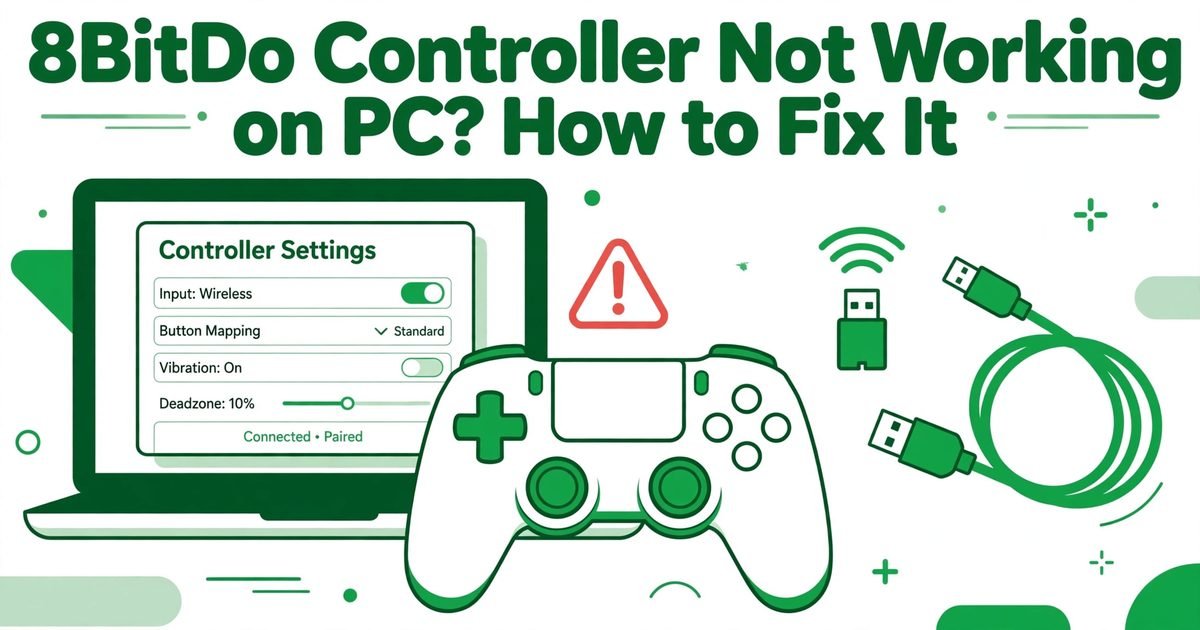
8BitDo Controller Not Working on PC? How to Fix It
An 8BitDo controller that refuses to work on a PC usually has a settings problem, not a broken pad. The usual causes are the wrong input mode, a lost wireless pairing, a charge-only USB cable, old firmware, or a Steam setting that fights the controller. This 8bitdo controller not working pc fix guide works through those causes in order.
One warning: 8BitDo sells several controller families that connect differently. A Pro 2 has a four-position mode switch, an SN30 Pro uses button combinations held at power-on, and Ultimate models use a 2.4G or Bluetooth switch with a separate receiver.
In This Guide — 8BitDo Controller Not Working PC Fix: Match the Symptom | Identify Your Model | X, D and S Modes | 2.4G Receiver | Bluetooth | USB-C Wired Test | Firmware Update | Windows and Steam | FAQs
Match the Symptom to the Fix First
SUMMARY: Each symptom points at a different cause, so match what you see to the right section first.
Start every 8bitdo controller not working pc fix attempt by writing down exactly what happens: never powers on, powers on but never appears in Windows, or connects yet sends no input in a game. That note is the first step of this 8bitdo controller not working pc fix.
| What Happens | Most Likely Cause | Try This First |
|---|---|---|
| Nothing lights up | Flat battery, bad cable | Charge, try a data cable, rear USB port |
| Powers on, Windows never sees it | Wrong mode, lost pairing | Check mode switch, re-pair receiver |
| Seen by Windows, dead in one game | Wrong mode, Steam Input | Switch to X-input, check Steam setting |
If it works in one game but not another, the hardware is fine; if it fails everywhere, the fault is lower down.
Identify Your Exact 8BitDo Model Before You Change Anything
SUMMARY: 8BitDo model names sound alike but connect differently, so confirm the exact model on the label first.
The first step in any 8bitdo controller not working pc fix is knowing which controller you hold: check the label on the back of the pad against the box or your order history. The names confuse easily: the Ultimate Bluetooth, Ultimate 2.4G, Ultimate 2C Wireless, Ultimate 2 Wireless, Ultimate 3 for Xbox, Pro 2, SN30 Pro and SN30 Pro+ all exist, each with its own manual for this 8bitdo controller not working pc fix.
The Pro 2 has a four-position switch on the back. The original SN30 Pro has no mode switch and changes mode with button combinations held at power-on. The Ultimate 2C Wireless has a 2.4G and Bluetooth switch, and its documented Windows route is the 2.4G receiver.
Set the Right Input Mode: X, D and S Explained
SUMMARY: X-input is the correct mode for almost every Windows game; D-input is for older software.
The wrong input mode is the most common reason an 8BitDo controller seems dead on a PC, and the easiest to fix. Windows games are built around XInput, the Xbox standard, so a pad presenting itself as anything else may be ignored, show wrong prompts, or fail in gameplay. X-input is what most Windows games expect; D-input is the older standard for old games and emulators; S is Switch mode, for the console only. This 8bitdo controller not working pc fix section shows how to pick the right one in this 8bitdo controller not working pc fix.
On the Pro 2, the rear switch has four positions: S, A, D and X. S is Switch mode, X is Windows X-input, D is Android D-input, and A is the Apple and macOS mode. Move the switch first, then press Start to power on, then hold Pair for about three seconds. Check the LEDs in this 8bitdo controller not working pc fix: LED 1 blinking means D-input, LED 2 blinking means X-input, and a rotating LED means Switch mode or pairing mode.

The original SN30 Pro has no switch: hold Start and X at power-on for Windows X-input, or Start and Y for Switch mode. Ultimate models use no X, D or S letters: their switch chooses 2.4G or Bluetooth. On the Ultimate 3 for Xbox, Bluetooth presents a generic DirectInput device many PC games will not use, so Ultimate owners start this 8bitdo controller not working pc fix with the connection switch.
8BitDo Controller Not Working PC Fix: Repair the 2.4G Receiver
SUMMARY: The 2.4G receiver is a separate pairing from Bluetooth, so fix it with the receiver steps.
For most Ultimate models, the 2.4G receiver is the best wireless route on a PC: a 2.4G link is a direct pairing between the controller and its own receiver, and the Windows Bluetooth menu cannot repair it.
Slide the mode switch to 2.4G, then plug the receiver directly into a rear USB port, not a hub, extension cable, or front-panel port. Keep it away from USB 3.0 drives and other wireless devices, which can create radio noise in the same band. Press the controller’s power or Home button and watch the LED: solid means this 8bitdo controller not working pc fix step worked, blinking means the link has not completed.
If the LED keeps blinking, re-pair from scratch. On the Ultimate 2C Wireless, move the switch to 2.4G, press Home to power on, hold Pair for three seconds until the LED blinks rapidly, then plug the adapter into the PC. On the Ultimate 3 for Xbox, hold Pair for about three seconds with the switch on 2.4G and the adapter in its dock. Also update the receiver firmware separately. That re-pairing is the core 8bitdo controller not working pc fix step for receiver models.
Fix the Bluetooth Connection
SUMMARY: Bluetooth failures are usually stale pairing data or the wrong mode, so start from a clean state.
Bluetooth is convenient and easily confused: a controller remembers the last device it paired with, and may keep trying to reconnect to that device instead of yours.
First, confirm your model supports Bluetooth on Windows: the Ultimate 2C Wireless documents Bluetooth for Android only, so do not assume the Android steps work on a PC in this 8bitdo controller not working pc fix.
For a Bluetooth-capable model, remove the old pairing on both sides. In Windows, open Settings, then Bluetooth and devices, find the controller, and remove it. On the controller, start fully powered off, set the correct Windows mode, then hold Pair for about three seconds until the LED flashes rapidly: on the Pro 2, the switch must be on X before you press Start; on the SN30 Pro, hold Start and X at power-on. Then, in Windows, choose Add device, then Bluetooth, and select the controller. That clean pairing is often the whole 8bitdo controller not working pc fix.
Test the USB-C Wired Connection
SUMMARY: A wired test with a proper data cable separates a broken controller from a broken wireless link.
When wireless will not cooperate, a wired connection is both a workaround and a diagnosis, and the fastest test in this 8bitdo controller not working pc fix guide. Plug the controller in with a USB-C cable and test it in the Windows game controller panel. If it works wired, the controller is fine, and the fault is in the wireless link, which is where this 8bitdo controller not working pc fix continues.
The cable is the usual trap: many USB-C cables bundled with chargers carry power only and cannot carry data, so a controller plugged in with one will charge and never appear in Windows. Use the cable that came with the controller, or one you know transfers data.
Update the Firmware with the Official 8BitDo Tools
SUMMARY: Outdated firmware causes connection and input faults, so update from 8BitDo’s own software only.
Firmware updates fix real connection bugs, and 8BitDo releases them through its own software rather than through Windows Update. Get the tools only from 8BitDo’s official sources: support.8bitdo.com, app.8bitdo.com, and the Upgrade Tool page.
Which tool you need depends on the model. Most current controllers use 8BitDo Ultimate Software V2, which handles mapping and firmware updates in one app. Older controllers use the original Ultimate Software V1, Xbox-licensed models use Ultimate Software X, and the oldest models use the standalone Upgrade Tool for firmware only. Check your exact model on the official support page first: the editions are not interchangeable in this 8bitdo controller not working pc fix. Picking the right edition is part of this 8bitdo controller not working pc fix.
Connect the controller with a USB-C data cable first: firmware updates travel over a wired connection only, never over Bluetooth or the 2.4G receiver in this 8bitdo controller not working pc fix. Open the software, let it detect the controller, and open the firmware update section. Update the controller firmware, and the receiver firmware too if offered: the two are separate targets, and updating only one is a classic cause of a link that still fails. Do not unplug the cable partway through.

8BitDo Controller Not Working PC Fix: Check Windows, Drivers and Steam
SUMMARY: Once the controller and its mode are right, the remaining faults live in Windows, the drivers, or Steam Input.
First, confirm Windows can see the controller at all in this 8bitdo controller not working pc fix: press Win and R, type joy.cpl, and look for it in the Game Controllers panel. If inputs register, Windows is fine; if the panel shows nothing, go back to the mode and connection sections.
Next, check Device Manager: press Win and X, and look under Human Interface Devices, Bluetooth, and Universal Serial Bus controllers for an unknown device with a yellow warning triangle. Right-click it and update the driver. Then restart the PC.
Then check Steam in this 8bitdo controller not working pc fix. Open Steam, go to Settings, then Controller, and confirm Steam lists your controller. If a game reads the controller twice, Steam Input is probably presenting a virtual controller alongside the real one: right-click the game in your Library, choose Properties, then Controller, and set the override to Disable Steam Input. If a game ignores the controller entirely, try Enable Steam Input instead. GameCresta has similar PC fix guides, including our Dead by Daylight crashing PC fix and Rainbow Six Siege crashing PC fix, plus our corrupt save file fix for PC.
Frequently Asked Questions
SUMMARY: Quick answers to the most common questions about this 8bitdo controller not working pc fix.
Why is my 8BitDo controller not working on PC at all?
The most common causes are the wrong input mode, a lost pairing, a charge-only USB cable, or outdated firmware. This 8bitdo controller not working pc fix starts with the mode: set a Pro 2 to X, or start an SN30 Pro with Start and X.
Which mode should I use for an 8BitDo controller on a PC?
Use X-input in this 8bitdo controller not working pc fix, because almost every modern Windows game expects the Xbox-style input standard. D-input is for older games and emulators, and Switch mode is for a Nintendo Switch only.
How do I pair an 8BitDo controller with a PC over Bluetooth?
Remove any old pairing in Windows Settings under Bluetooth and devices, then start the controller in the right Windows mode and hold Pair for about three seconds. In Windows, choose Add device, then Bluetooth, and select the controller. A solid LED means this 8bitdo controller not working pc fix worked.
How do I re-pair the 2.4G receiver?
Set the switch to 2.4G, power the controller on, hold Pair for about three seconds until the LED blinks rapidly, then plug the receiver into a rear USB port. When the link completes, both LEDs turn solid. Do not use the Windows Bluetooth menu for this 8bitdo controller not working pc fix: the 2.4G pairing is separate from Bluetooth.
Why does my 8BitDo controller connect but not work in Steam games?
Steam Input is probably translating the controller wrongly, or the game is reading both the real controller and a virtual one Steam created. Right-click the game in Steam, open Properties, then Controller, and try Disable Steam Input first; if the game then ignores the pad, try Enable Steam Input instead to finish this 8bitdo controller not working pc fix.
Should I update the firmware, and where do I get it?
Yes. Download 8BitDo Ultimate Software V2 only from support.8bitdo.com or app.8bitdo.com, and update over a wired USB-C connection. Older models use the standalone Upgrade Tool from the official firmware updater page, and Steam support is at help.steampowered.com. Never download firmware from a third-party site in this 8bitdo controller not working pc fix guide.
For More Updates Visits: GAME CRESTA






2 Responses