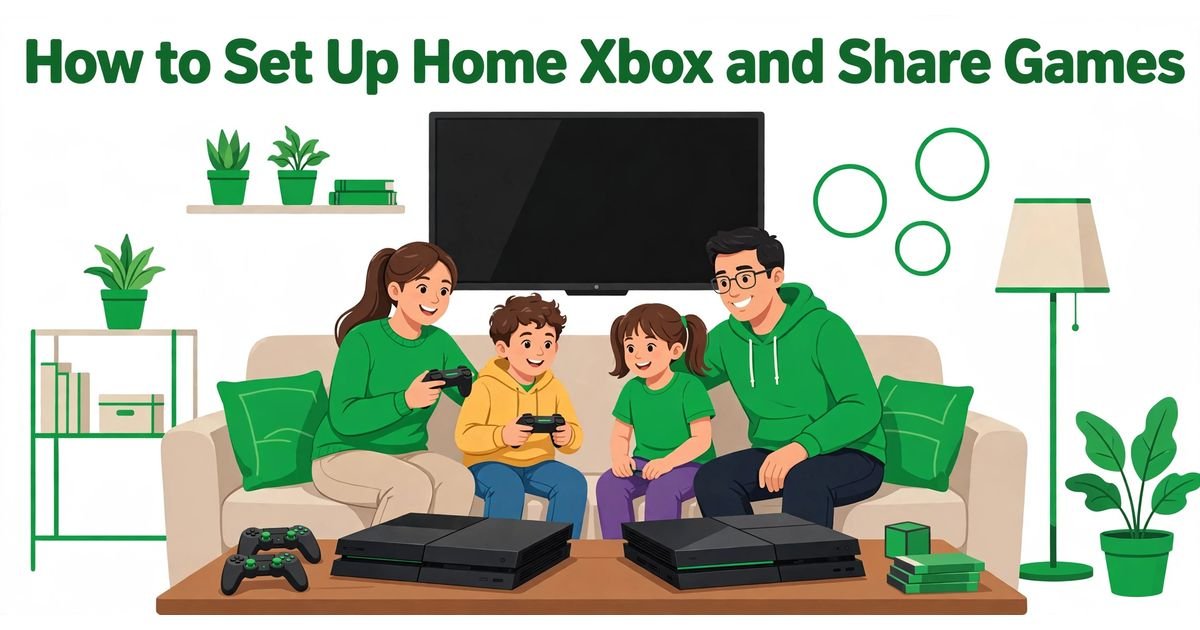
Microsoft’s answer is Home Xbox, and this xbox home xbox setup game sharing guide explains exactly how to use it. With xbox home xbox setup game sharing done right, you only pick the right console, change one setting, and respect the limits.
The feature works on Xbox One, Xbox Series X, and Xbox Series S. Once it is set, everyone who signs in with their own profile can play your digital games and use your Game Pass, even when you are not signed in. This xbox home xbox setup game sharing walkthrough covers what gets shared and the five-switch yearly limit.
In this guide: What Is Home Xbox? | What You Can Share | Before You Start: What You Need for Xbox Home Xbox Setup Game Sharing | Setup Steps | Sharing Game Pass | The Switch Limit | Changing Home Xbox | Xbox Home Xbox Setup Game Sharing Not Working? | FAQs About Xbox Home Xbox Setup Game Sharing
What Is Home Xbox?
SUMMARY: Home Xbox is a console license setting that lets other profiles on one chosen Xbox play your digital games and use your Game Pass, while you keep playing on a second console.
Behind that sit two licenses: a device license on the console and a user license on your account.
That two-license design is what makes xbox home xbox setup game sharing work for a household with two consoles. Set the living-room Xbox as your Home Xbox: your child signs in there with their own profile and plays your digital games, while you sign in on the bedroom Xbox. The same xbox home xbox setup game sharing logic applies to a Series X, a Series S, or an Xbox One.
One rule shapes every xbox home xbox setup game sharing decision: each account can have only one Home Xbox at a time. Set a new console as your Home Xbox and the old one loses the designation at once. Home Xbox also controls offline play: your digital games work offline on your Home Xbox.
What You Can and Cannot Share on Your Home Xbox
SUMMARY: Digital games, DLC, and Game Pass are shared on your Home Xbox. Disc games need the disc, in-game currency usually stays with the buyer, and PC Game Pass is not shared.
| Item | Shared on your Home Xbox? |
|---|---|
| Digital games from the Microsoft Store | Yes, all profiles |
| Downloadable content (DLC) | Yes, in most cases |
| Game Pass (Ultimate, Premium, Essential) | Yes, all profiles |
| Game Pass Core online multiplayer | Yes, all profiles |
| Disc games | Only with the disc inserted |
| In-game currency and consumables | Usually not shared |
| PC Game Pass | No |
Digital games are the heart of xbox home xbox setup game sharing. Any digital game can be played by other profiles on your Home Xbox, without your password. In xbox home xbox setup game sharing, DLC follows the same pattern.
The biggest win in xbox home xbox setup game sharing is Game Pass. On your Home Xbox, every profile that signs in can download and play Game Pass games, even when you are not signed in. That covers Ultimate, Premium, and Essential on console. Game Pass Core, which replaced Xbox Live Gold, also shares its online multiplayer benefit. Before planning the shared download queue, check the Xbox Game Pass games leaving in November 2026 list on GameCresta.
Before You Start: What You Need for Xbox Home Xbox Setup Game Sharing
SUMMARY: You need the account that owns the games, an internet connection, the console you want to share from, and a profile for each player.
A clean xbox home xbox setup game sharing setup takes about ten minutes, but only if everything is ready first.
- The owning account. Use the Microsoft account that bought the games or pays for Game Pass.
- An internet connection. The console must be online to set the designation.
- The right console. Pick the Xbox the household uses most.
- A profile for each player. Everyone needs their own Xbox profile.
- Your remaining switches. Check how many of your five yearly switches are left.
Turn on a sign-in passkey or require a password for purchases on the shared console, or anyone using it could buy games with your saved payment method. In xbox home xbox setup game sharing, sharing works without you being signed in.
How to Set Up Home Xbox and Share Games Step by Step
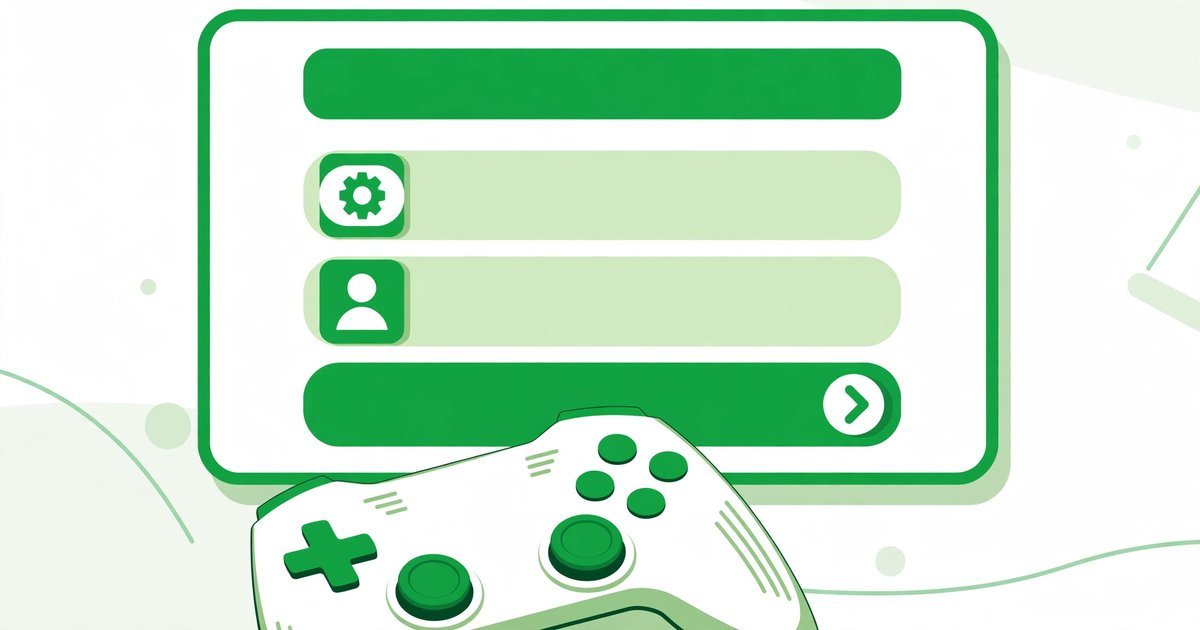
SUMMARY: Sign in with the buying account, open Settings, go to General, then Personalization, then My home Xbox, and select Make this my home Xbox.
Do these steps on the console you want to make your Home Xbox. This is the core of xbox home xbox setup game sharing.
- Turn on the Xbox you want to share from.
- Sign in with the account that owns the games or Game Pass.
- Press the Xbox button to open the guide.
- Select Profile and system, then Settings.
- Select General, then Personalization.
- Select My home Xbox.
- Select Make this my home Xbox and confirm the choice.
- Wait for the confirmation that this console is now your Home Xbox.
That is the whole setup, and the official menu path is confirmed on Xbox Support. A first console can also become your Home Xbox automatically in xbox home xbox setup game sharing, unless you choose Lock it down during setup.
Now test it. Sign out of the buying account, sign in with a second household profile, and launch one of your digital games.
How to Share Game Pass on Your Home Xbox
SUMMARY: Game Pass Ultimate, Premium, and Essential are all shared with every profile on your Home Xbox.
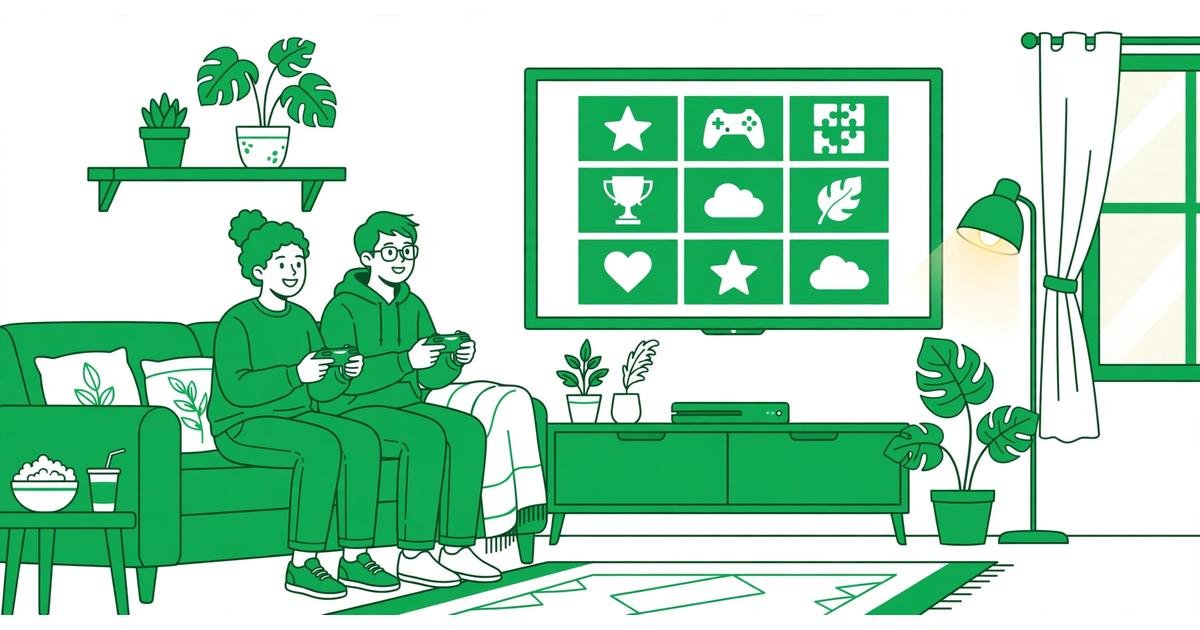
Once the console is the Home Xbox for the account that pays for Game Pass, every profile that signs in can download and play Game Pass games, even if the subscriber is not signed in. In xbox home xbox setup game sharing, that covers Game Pass Ultimate, Premium, and Essential on console, plus the online multiplayer from Game Pass Core. Microsoft explains this on its Game Pass sharing support page.
The subscriber is not locked out while sharing. You can sign in on any other Xbox and use Game Pass there while signed in, but other profiles on that second console do not get access. Getting this split right is the real skill in xbox home xbox setup game sharing.
Two notes matter. First, the plan must include console play. Second, Game Pass games can leave the service, and when one does, every profile loses access at once. There is no current Game Pass family plan: Microsoft’s Friends and Family preview ended in August 2023. For ideas, see the best video games in 2026 list and Escape Academy 2 Back 2 School on Game Pass.
The Home Xbox Switch Limit: Five Changes a Year
SUMMARY: You can change your Home Xbox up to five times in any one-year period, the limit rolls rather than resetting on 1 January, and Xbox Support cannot grant extra switches.
You can switch your Home Xbox up to five times in any one-year period. Once you reach the limit, the My home Xbox screen shows the next date you can change it again, and in an xbox home xbox setup game sharing household, that date can be months away.
In xbox home xbox setup game sharing, the one-year period is rolling, not a calendar year. Each change counts for twelve months from the date you made it.
So choose the shared console deliberately, test it with a second profile, then leave the setting alone. Do not flip the Home Xbox back and forth, because each flip is one of your five changes. That discipline is the unglamorous half of xbox home xbox setup game sharing.
How to Change or Remove Your Home Xbox
SUMMARY: Changing your Home Xbox uses the same My home Xbox screen and costs one of your five yearly switches, so confirm the new console and your remaining switches first.
To change it, repeat the xbox home xbox setup game sharing steps on the new console. Sign in with the buying account, open Profile and system, then Settings, then General, then Personalization, then My home Xbox, and select Make this my home Xbox.
To remove the designation, open My home Xbox on the current Home Xbox and remove it. That console stops sharing your games right away. Only do this if you are selling the console, giving it away, or moving the designation to a replacement machine.
If you reset a console and remove everything, sign in again afterwards and check the My home Xbox screen, because the designation may need to be set again. A two-minute check after any reset is a sensible part of xbox home xbox setup game sharing.
Xbox Home Xbox Setup Game Sharing Not Working? Fixes That Work
SUMMARY: Most sharing failures come from the wrong console holding the Home Xbox setting, a subscription that does not include console play, or the same game being played on two consoles at once.
When xbox home xbox setup game sharing stops working, the cause is usually simple. Work through these checks in order before you change anything.
First, confirm the right console is your Home Xbox. Sign in with the buying account on the console where the second profile cannot play, open Settings, then General, then Personalization, then My home Xbox.
Second, check the buying account. The profile signed in during setup must be the account that actually bought the game or pays for the subscription.
Third, check the subscription. If Game Pass games refuse to open for a second profile, confirm the plan on the buying account is active and includes console play.
Fourth, remember the one-console rule for a single game. A digital game can only be played on one console at a time, so if the owner is already playing that same title, a second profile cannot launch it simultaneously.
Fifth, try the basic console steps. Restart the console fully and sign the buying account in and out once so the licenses refresh. If a game shows a license error, signing the owner in first and launching the game once often clears it. When xbox home xbox setup game sharing still fails after all five checks, the most likely remaining cause is a used-up yearly switch limit. For co-op picks once access is restored, see the online games for couples guide.
FAQs About Xbox Home Xbox Setup Game Sharing
SUMMARY: These six answers cover the questions households ask most.
Can I use xbox home xbox setup game sharing with someone in another house?
The feature is designed for one household sharing one console. Sharing account access with strangers, or selling access to your library, puts your account at risk. Keep it inside your household and never share your password.
How many times can I change my Home Xbox in a year?
You can change your Home Xbox up to five times in any one-year period, on a rolling basis. Microsoft states the limit, and customer support cannot offer extra switches.
Can two people play the same game at the same time on two consoles?
Not the same copy of the same game. One digital purchase can only be played on one console at a time. Two people can play different games from the same shared library.
Does Home Xbox share Game Pass on PC?
No. On a Windows PC, Game Pass is tied to each person’s own Microsoft account. The Home Xbox setting shares Game Pass on the console only.
Do I need to stay signed in on the Home Xbox for sharing to work?
No. Once a console is set as your Home Xbox, other profiles can play your digital games and use your Game Pass even when you are not signed in.
What happens to my games if I change my Home Xbox?
The old console loses access to your shared games and Game Pass right away. All of your device licenses move to the new Home Xbox.
Setting up Home Xbox once, properly, is one of the best value moves an Xbox household can make. One purchase and one subscription can serve the whole family room. Pick the shared console deliberately, protect the buying account, and respect the five-switch yearly limit. Do that, and xbox home xbox setup game sharing will quietly save your household money for years.
For More Updates Visits: GAME CRESTA